KORG PA SET & KST EDITOR

Open. Play. Mix.
Make it your set.

Set Editor Pro is desktop software for organising and editing KORG PA SET and Pa5X KST collections.

Open multiple sets at once, each in its own tab. Compare banks, preview style parts, and bring your favourite sounds and styles together.

EARLY ORDER$119.99 for Pro
Multiple setsTabs · Copy · Paste · MergeStyle partsExplore & previewPa5X supportKST workflows

Planned for Windows, macOS & Linux · Early-order price: $119.99 · One-time Pro licence

INSIDE SET EDITOR PRO / ACTUAL APPLICATION
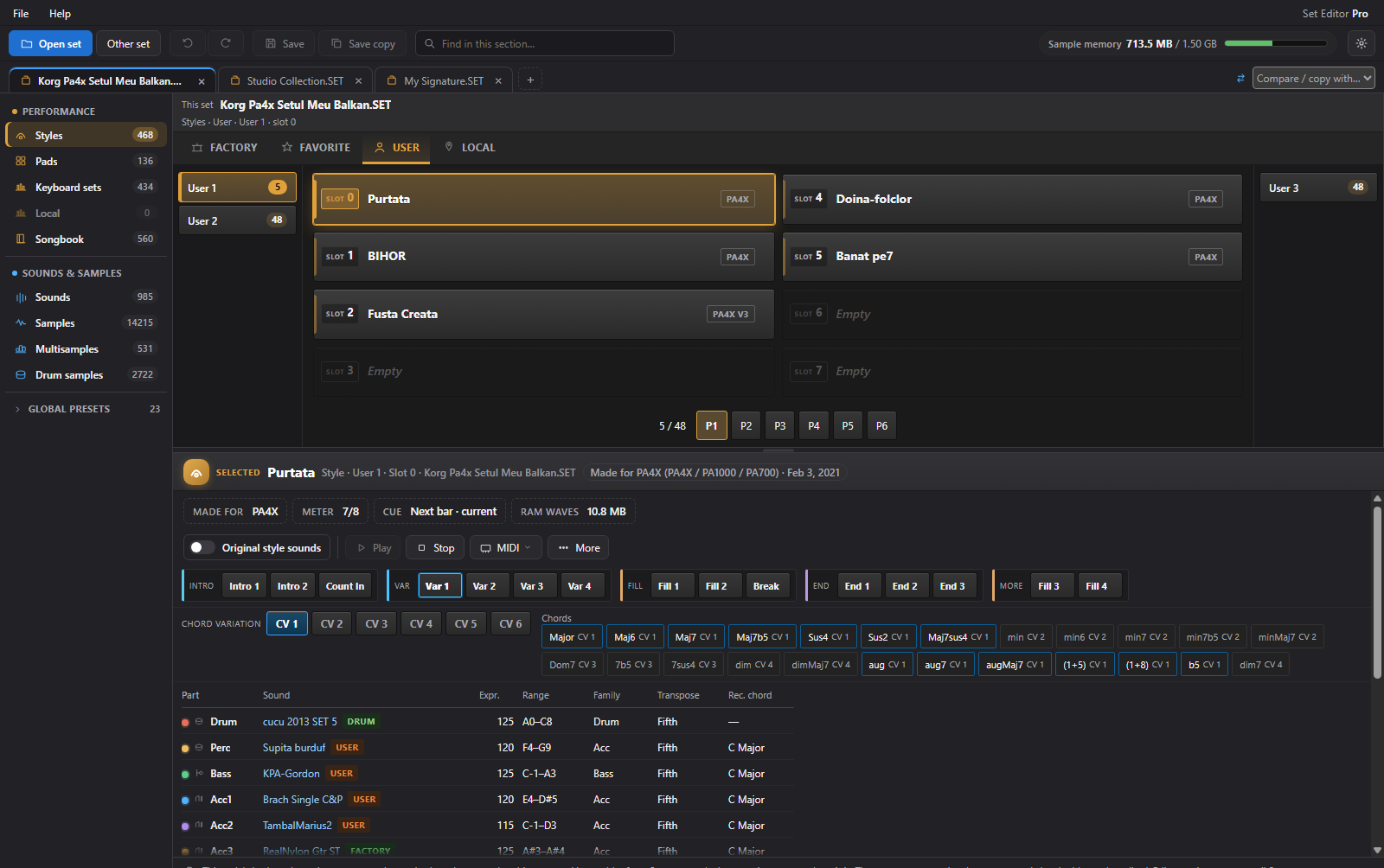
SET EDITOR PRO MULTIPLE SETS. ONE WORKSPACE.
Set Editor Pro with multiple collections open in tabs
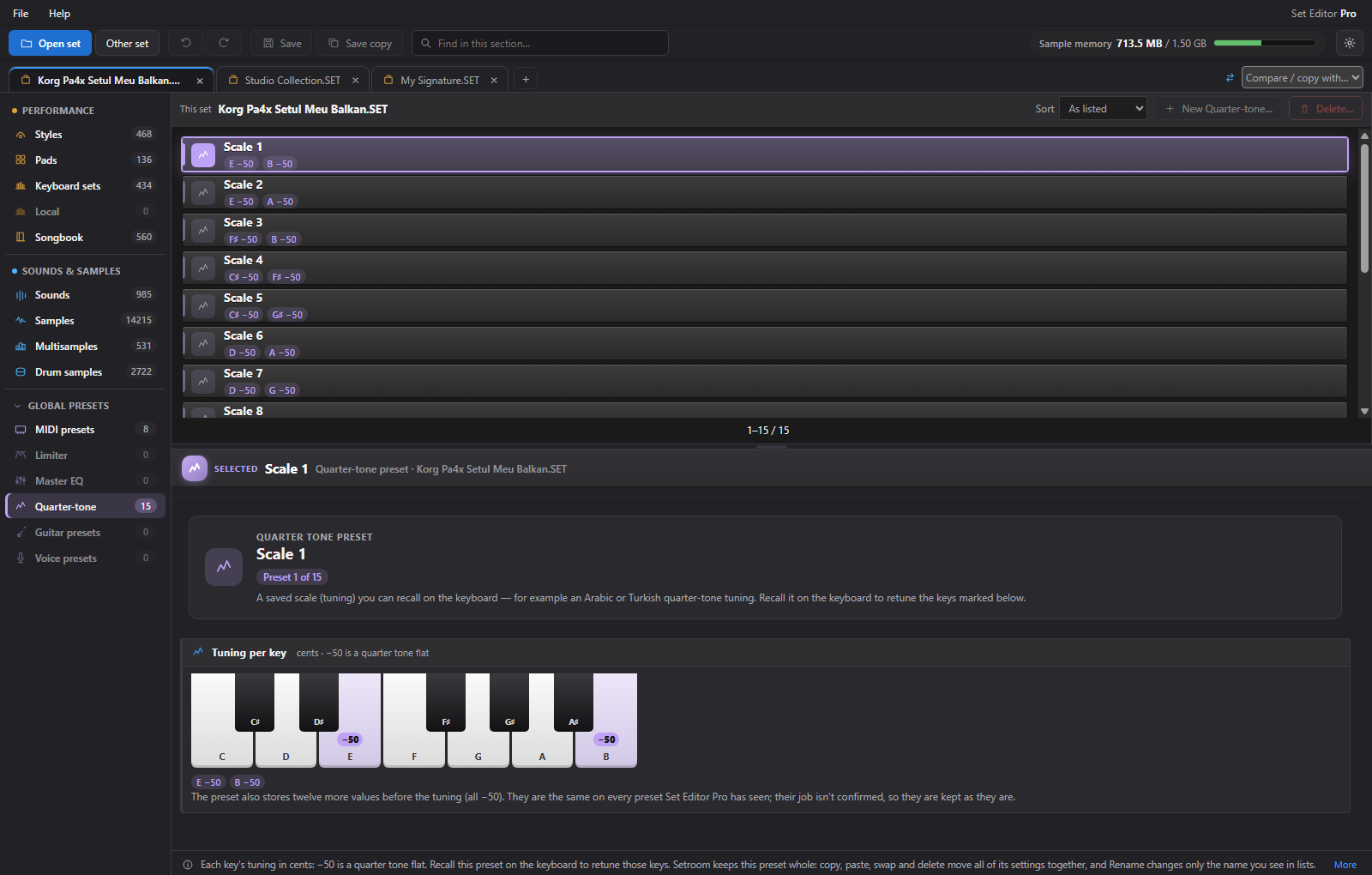
Quarter-tone preset keyboard in Set Editor ProYOUR NOTES. YOUR TUNING.
STYLES / SOUNDS / SAMPLES / QUARTER TONE
BUILT AROUND YOUR ARRANGERKORG PA50 → PA5X FAMILYYAMAHA ON THE ROADMAPExplore the model families

01 / MEET YOUR NEW WORKSPACE

More music.
Less menu diving.

Your set deserves more than a tiny screen.
Explore, organise, and shape it on your computer, with room to see the bigger picture.

01

Open your collection.

Explore styles, sounds, pads, keyboard sets, and samples in your Korg PA set folders.

02

Make it your own.

Compare sets side by side. Select the parts you love, edit, and bring them together.

03

Take it to your keys.

Save a new set folder, keep a backup, and check the result on your keyboard.

02 / THE COMPLETE CREATIVE WORKSPACE

From the whole set
to the smallest detail.

Multiple sets. Every style part. Every oscillator.
Explore the tools at your own pace.

Find a specific feature ↓
01 / OPEN & MIX SETS

Multiple sets. Open together.

Open several sets at the same time, each in a different tab. Copy and paste compatible styles, sounds, pads, and keyboard sets between them, then merge the resources you want to keep.

Multiple sets open simultaneouslyCopy, paste, and dependency-aware mergingNew banks, new sounds, and slot tools
Explore sets & merging ↗
02 / STYLES, PADS & MIDI

Hear the part. Follow every note.

Explore variations, intros, fills, breaks, and endings. Follow the live note lanes, open the event editor, and give pads their own creative space.

Style-part and pad previewsPiano roll and MIDI event editingTracks, chord variations, and patterns
Explore styles & playback ↗
03 / SOUNDS & MULTISAMPLES

Get inside the sound.

Inspect every OSC and its layers. Explore mapped multisamples on a playable keyboard, then shape eligible sample audio inside the same workspace.

OSC layers, key ranges, and pitchPlayable RAM sample zonesGain, trim, filters, and graphic EQ
Explore sound design ↗
04 / GLOBAL & PERFORMANCE

The setup behind your playing.

Open Global presets, MIDI setups, and quarter-tone tuning. Explore keyboard sets, track sounds, and the supported performance controls.

Global preset sections in viewQuarter-tone and per-key centsKeyboard sets, linked pads, and scales
Explore Global & performance ↗
05 / SET DOCTOR & MEMORY

A clearer picture of the whole set.

Find missing audio, unused samples, duplicate audio, and memory-budget issues. Inspect the findings before choosing the cleanup or repair workflow.

Sample and memory checksActionable findings and reportsAvailable repairs into a separate copy
Explore SET Doctor ↗
06 / COMPRESS & DE-COMPRESS

Make room. Keep creating.

Work with one eligible sample or prepare the whole set. De-Compress when you need uncompressed audio for editing, then apply prepared changes through Save.

Single-sample operationsCompress / De-Compress SETSample memory always in view
Explore compression ↗

GLOBAL, OPENED UP

There’s more to a set
than styles and sounds.

The Global section has its own place in the workspace. Browse the presets stored in your set, see your quarter-tone tuning, and keep the wider playing setup in view.

MIDI setupsMaster limiterMaster EQQuarter toneGuitar presetsVoice presets
Step inside Global presets ↗

Preset contents and supported operations depend on the keyboard model and set. The screenshot shows the actual expanded navigation.

A CLOSER LOOK

Explore the workspace.

Real tools, real screenshots. Select an image for a closer look.

SET Doctor

Know what your set needs.

Find missing audio, unused samples, duplicate audio, and memory-budget issues. Inspect a finding, then choose the cleanup or report tool that fits.

Explore these tools ↗
Live style preview

Follow every part as it plays.

Choose an intro, variation, fill, break, or ending. Hit Play and follow the coloured note lanes and moving playhead through the selected part.

Explore these tools ↗
OSC & layers

Layer by layer. A sound of your own.

Inspect each OSC, its high and low multisample layers, key ranges, pan, and pitch. Add or remove eligible oscillators and open the deeper trigger, velocity, EQ, and voice controls.

Explore these tools ↗
Right-click actions

Right-click. Keep creating.

Inspect, find uses, rename, copy, cut, pick for swap, discard unsaved changes, or delete. The slot menu keeps everyday actions beside the selected item.

Explore these tools ↗
Rename

A name you’ll remember.

Keep your collection recognisable. Name your sounds and organise the slots around the way you work, with supported Undo and discard options when you need a way back.

Explore these tools ↗
Compress & De-Compress

Make room. Keep creating.

Compress an eligible sample or prepare the whole set. De-Compress when you need uncompressed audio for editing. The memory budget stays in view.

Explore these tools ↗
Event editor

That note. That timing. Your decision.

Explore the piano roll and event list. Transpose, quantize, and adjust note pitch, velocity, start time, and duration. Work with supported tracks and MIDI patterns.

Explore these tools ↗
Playable multisamples

Your samples, under your fingers.

Click, hold, or slide across the keys—or use your computer keyboard. Hear the mapped RAM sample pitched from its root note, with the zones clearly in view.

Explore these tools ↗
New bank

A place for the next idea.

Create an eligible user or drum-kit sound bank within your keyboard’s limits. Give supported banks names that make sense for your collection.

Explore these tools ↗
Process audio

A better sample. One less round trip.

Adjust gain, reverse, invert phase, normalize, trim, filter, or EQ eligible audio. Keep useful sample work inside the same workspace.

Explore these tools ↗
Pads

A little rhythm. A lot of possibility.

Browse and preview pads. Explore One-Shot or Loop behaviour, cue, meter, expression, and recorded chord, then take supported patterns into the MIDI tools.

Explore these tools ↗
Quarter tone

Every note. A little more yours.

Explore quarter-tone presets on a clear per-key keyboard. See each note’s cents and work with the supported presets and keyboard-set tuning controls.

Explore these tools ↗
New program

An empty slot. A new program.

Create a new user sound in an eligible empty slot. Start with a blank oscillator, then shape the sample layers and parameters. Paste compatible copied styles into available style slots.

Explore these tools ↗
SET Doctor

Know what your set needs.

Find missing audio, unused samples, duplicate audio, and memory-budget issues. Inspect a finding, then choose the cleanup or report tool that fits.

Explore these tools ↗
Process audio

A better sample. One less round trip.

Adjust gain, reverse, invert phase, normalize, trim, filter, or EQ eligible audio. Keep useful sample work inside the same workspace.

Explore these tools ↗
Event editor

That note. That timing. Your decision.

Explore the piano roll and event list. Transpose, quantize, and adjust note pitch, velocity, start time, and duration. Work with supported tracks and MIDI patterns.

Explore these tools ↗
OSC & layers

Layer by layer. A sound of your own.

Inspect each OSC, its high and low multisample layers, key ranges, pan, and pitch. Add or remove eligible oscillators and open the deeper trigger, velocity, EQ, and voice controls.

Explore these tools ↗
Quarter tone

Every note. A little more yours.

Explore quarter-tone presets on a clear per-key keyboard. See each note’s cents and work with the supported presets and keyboard-set tuning controls.

Explore these tools ↗
New bank

A place for the next idea.

Create an eligible user or drum-kit sound bank within your keyboard’s limits. Give supported banks names that make sense for your collection.

Explore these tools ↗
Rename

A name you’ll remember.

Keep your collection recognisable. Name your sounds and organise the slots around the way you work, with supported Undo and discard options when you need a way back.

Explore these tools ↗
Compress & De-Compress

Make room. Keep creating.

Compress an eligible sample or prepare the whole set. De-Compress when you need uncompressed audio for editing. The memory budget stays in view.

Explore these tools ↗
Live style preview

Follow every part as it plays.

Choose an intro, variation, fill, break, or ending. Hit Play and follow the coloured note lanes and moving playhead through the selected part.

Explore these tools ↗
Pads

A little rhythm. A lot of possibility.

Browse and preview pads. Explore One-Shot or Loop behaviour, cue, meter, expression, and recorded chord, then take supported patterns into the MIDI tools.

Explore these tools ↗
Playable multisamples

Your samples, under your fingers.

Click, hold, or slide across the keys—or use your computer keyboard. Hear the mapped RAM sample pitched from its root note, with the zones clearly in view.

Explore these tools ↗
Right-click actions

Right-click. Keep creating.

Inspect, find uses, rename, copy, cut, pick for swap, discard unsaved changes, or delete. The slot menu keeps everyday actions beside the selected item.

Explore these tools ↗
New program

An empty slot. A new program.

Create a new user sound in an eligible empty slot. Start with a blank oscillator, then shape the sample layers and parameters. Paste compatible copied styles into available style slots.

Explore these tools ↗
TUNING

Your notes.
Your tuning.

Explore per-key cents, quarter-tone presets, and supported keyboard-set scales.

See quarter tone ↗
PERFORMANCE

Keep the setup
with the song.

Browse keyboard sets, SongBook entries, track assignments, and supported lyrics tools.

Explore SongBook ↗
CONTROL

Room to try.
A way back.

Use supported Undo and Redo, Save copy, previous-folder backup, and unsaved-change checks.

Explore the save workflow ↗
THE FULL TOOLSET, WHEN YOU NEED IT

Find a feature.

Search every tool or open a workflow group.

Open feature finderClose feature finder

12 feature groups · Open a group to explore

01Multiple sets & merging

8 tools
  • Multiple open setsKeep several sets open in separate tabs.
  • Side-by-side comparisonBrowse two sets together before choosing what to keep.
  • Cross-set copyingBring compatible styles, sounds, pads, and keyboard sets into another set.
  • Dependencies come alongCopy the associated user resources needed by an item.
  • Shared sample reuseReuse shared sample resources rather than blindly duplicating them.
  • Choose destination slotsPlace copied items where they belong in the destination banks.
  • Search, sort & navigateSearch the active section, sort lists, and move through banks and pages.
  • Model-aware bank layoutsSee the bank structure and capacity for the selected keyboard family.

02SET Doctor & memory

8 tools
  • Missing audio checksFind sample entries whose audio cannot be found.
  • Unused sample detectionIdentify audio that no multisample or drum kit plays.
  • Duplicate audio detectionSpot the same audio stored more than once.
  • Sample memory budgetCompare the set’s memory use with your fitted RAM setting.
  • Actionable findingsInspect findings, select groups, and jump to relevant items.
  • Download findingsKeep a readable report for your own checks.
  • Sample cleanupQueue removal of eligible unused or missing-audio entries.
  • Repair into a copyApply the available cleanup to a separate copy of the set.

03Compress & De-Compress

6 tools
  • Compress one sampleQueue compression for an eligible uncompressed sample.
  • De-Compress one sampleTurn an eligible compressed sample into editable uncompressed audio.
  • Compress SETQueue compression across eligible uncompressed samples in a set.
  • De-Compress SETQueue decompression across the set’s eligible compressed samples.
  • Preview queued processingAudition supported sample processing before Save.
  • Memory stays visibleKeep track of the memory budget as you prepare your set.

04Styles, playback & MIDI events

16 tools
  • Every style part in viewSelect available variations, intros, fills, breaks, and endings.
  • Chord variationsExplore the CVs and chord mappings stored in the style.
  • Live playback timelineFollow the moving playhead and coloured instrument lanes while a part plays.
  • Per-track previewListen to a selected pattern track.
  • Piano roll & event listSee note positions, pitches, velocities, durations, and control events.
  • Transpose & quantizeMove pattern notes in pitch or align them to a chosen grid.
  • Note editingAdjust pitch, velocity, start time, and length; insert or delete notes.
  • Event clipboardCopy and paste selected notes and work with multiple events.
  • Controllers & pitch bendInsert or change supported control and bend events.
  • Track & pattern operationsCopy, paste, merge, clear, insert, or delete eligible track patterns.
  • Place & CV operationsWork with eligible whole-part and chord-variation patterns.
  • MIDI import & exportExchange a part, CV, or selected track as supported MIDI.
  • Arrangement settingsInspect and edit available sounds, expression, key ranges, transpose, meter, tempo, and cue settings.
  • Original style soundsCompare pattern sound assignments with the style’s settings and restore supported originals.
  • Keyboard/STS viewExplore the style’s stored keyboard parts and their available settings.
  • Style reportsReview sound assignments and resources in a detailed report.

05Pads, with room to create

8 tools
  • Pad bank browsingFind, inspect, and organise pads across their banks.
  • Pad playbackPreview available pad parts with the same visual timeline.
  • One-Shot & Loop settingsInspect and change the supported pad playback mode.
  • Sound & expression settingsWork with the pad’s available sound, expression, and key-range controls.
  • Transpose, cue & meterAdjust supported musical and playback settings.
  • Pad pattern editingUse the available note, track, and event operations on pad patterns.
  • Pad MIDI exchangeImport or export supported pad pattern MIDI.
  • Copy, rename, swap & deleteOrganise pads with the slot tools and cross-set workflow.

06Sounds, OSCs & drum kits

12 tools
  • Create a new user soundStart an eligible sound slot with a new program.
  • Per-OSC navigationInspect each oscillator in the sound.
  • Add & remove oscillatorsChange the oscillator structure within the model and format limits.
  • High/low sample layersInspect and assign the available multisample layers.
  • Keys, pan & pitchShape supported oscillator ranges, balance, octave, transpose, and tuning.
  • Attack, delay & filter controlsWork with the supported basic sound parameters.
  • Trigger & velocity settingsExplore available modes, delays, velocity switches, and ranges.
  • Oscillator EQ & voice settingsExpand the advanced groups for the supported controls.
  • Try RAM-based soundsPlay supported RAM layers from the on-screen or computer keyboard.
  • Drum-kit key layersInspect and edit the available drum-key layer, pitch, level, and EQ settings.
  • Find usesSee the styles and other items that refer to a sound.
  • Sound remappingReplace supported sound references across the set.

07Banks, slots & right-click tools

9 tools
  • Create a sound bankAdd an eligible missing user or drum-kit bank within the model’s limits.
  • Rename a bankGive supported banks names that suit your collection.
  • Right-click a sound slotInspect, find uses, rename, copy, cut, pick for swap, reset unsaved edits, or delete.
  • Right-click styles & padsUse the relevant inspect and editing commands on the selected slot.
  • Fill empty style slotsPaste a copied compatible style into an available destination slot.
  • New sound in an empty slotCreate a fresh user program where the format allows it.
  • Swap within a bankPick an item, then exchange it with another eligible slot in that bank.
  • Delete with contextReview available dependency information when removing resources.
  • Discard unsaved item changesReturn the selected item to the version stored in the set.

08Multisamples, zones & playing

9 tools
  • Playable multisample keyboardClick, hold, or slide across keys to audition the mapped sample zones.
  • Computer-keyboard playingUse computer keys to try the supported piano views.
  • Coloured zone mapSee which sample zone covers each part of the keyboard.
  • Root-note transpositionAudition a zone pitched relative to its original note.
  • Zone editingChange available key boundaries, root note, sample link, pitch, and level.
  • Create & organise multisamplesUse the available new, rename, copy, cut, paste, swap, and delete operations.
  • Zone structure toolsAdd, split, or clear eligible zones.
  • KMP import & exportExchange supported multisamples as KMP files.
  • Drum-sample toolsInspect and manage drum-sample entries and their sample links.

09Samples, WAV & audio processing

11 tools
  • Sample preview & informationInspect note, rate, length, loop, format, and memory use.
  • WAV importReplace an eligible sample or import a new one.
  • WAV exportExport supported sample audio, individually or as a collection.
  • Loop & root-note controlsEdit supported loop points, recorded note, and tuning fields.
  • Gain & normalizationAdjust level or normalize eligible uncompressed audio.
  • Reverse & phase inversionReverse the wave or invert its polarity.
  • Trim audioChoose the retained sample range.
  • Low-pass & high-pass filtersProcess eligible sample audio with the available filters.
  • Graphic EQShape eligible audio with the built-in equalizer.
  • Sample clipboardCopy, cut, paste, or delete eligible samples.
  • Bulk wave replacementReplace sample waves that share an exact name.

10Global, keyboard sets & quarter tone

8 tools
  • Keyboard-set banksBrowse and organise keyboard sets with the slot workflow.
  • Track sound assignmentsInspect and change available Upper and Lower sounds.
  • Performance controlsWork with supported volume, mute, pan, detune, and octave settings.
  • Linked padsInspect and change the available pad assignments and levels.
  • Scale & tuning controlsExplore supported scales, keys, and custom note tuning.
  • Quarter-tone keyboard viewSee each preset’s tuning in cents on a clear keyboard.
  • Quarter-tone preset toolsCreate, name, copy, swap, delete, or edit eligible presets.
  • Global preset browsingInspect the MIDI, master limiter, master EQ, quarter-tone, guitar, and voice preset sections available in your set.

11SongBook & lyrics

6 tools
  • SongBook browsingFind entries by their names and stored musical information.
  • Entry managementUse available new, rename, copy, cut, paste, swap, and delete operations.
  • Song detailsEdit supported artist, genre, tempo, meter, and song settings.
  • Keyboard sets within entriesInspect and edit the available sounds, tracks, scales, and tuning.
  • Style links & drive labelsReview the entry’s stored links and location information.
  • Lyrics toolsCreate or edit supported text lyrics from the app.

12Save, recover & stay in control

11 tools
  • Edit before savingKeep most edits in memory until you choose Save.
  • Save & Save copyWrite the prepared set into a complete destination folder.
  • Previous-folder backupAn existing destination is retained beside its replacement during the save workflow.
  • Undo & redoStep back or forward through supported queued edits.
  • Unsaved-change protectionReview unsaved work before closing or discarding it.
  • Keyboard proof checklistWork through a saved set on your actual keyboard.
  • Drag-and-drop openingDrop a set folder into the desktop app to open it.
  • Recent sets & shortcutsGet back to your collection and common commands quickly.
  • Light, dark & system themesChoose the appearance that fits your workspace.
  • Offline desktop workflowWork with local files and a locally verified licence.
  • Support reportsExport useful diagnostic context without automatically uploading your set.
TRIAL & PRO

Pro unlocks every current feature. The free trial gives you 3 days of browsing and preview.

MAKE ROOM FOR YOUR NEXT IDEA

Try it with your own collection.

Join the waitlist ↗

THE KORG PA FAMILY / ACROSS GENERATIONS

From Pa50 to Pa5X.
A family of possibilities.

Find your keyboard. Build your collection.
Each model has its own place in the Pa family.

Pa50Pa50SDPa60Pa80microARRANGERPa1XPa1X ProPa500Pa588Pa2X ProPa800Pa3XPa3X LePa300Pa600Pa600QTPa900Pa700Pa700 OrientalPa1000Pa4XPa5X
SET & KST

Pa5X support with KST workflows. Tools follow the model and set format. Pa4X OS NEXT is an operating-system update for Pa4X.

Join with your keyboard model ↗

03 / THE NEXT CHAPTER

A bigger creative
future. In the works.

We’re building toward a workspace that helps you create, as well as organise.

PLANNED

Yamaha workflows

Expand beyond Korg, with Yamaha set and style workflows. Cross-brand capabilities are still being explored.

PLANNED

AI-assisted creation

Explore automatic style and sound creation, with AI as a creative starting point.

Join the waitlist for news from the next chapter.

04 / YOUR EARLY-ORDER ADVANTAGE

Your next set.
A better first price.

Join the waitlist for news.
Reserve Pro for $119.99 with your early order.

03
Days to find your flow.

Join the waitlist for trial access. Your 3-day trial covers browsing and preview; Pro unlocks editing, merging, saving, and every current feature.

Join the waitlist ↗
PROEARLY ORDER · SAVE $29.01

Set Editor Pro

$149Regular price
$119.99

USD · one-time licence

Save $29.01 with your early order.

  • Every current app feature unlocked
  • All editing, merging, saving, and exports
  • Audio processing, batch replacement, and repairs
  • Licence for one computer
  • Free updates within your purchased major version

Planned platforms: Windows, macOS and Linux. Major version upgrades are separate. Future AI features are separate from this offer.

Reserve my early-order price

Send your early-order request. We’ll email the order details.

05 / BEFORE YOU JOIN

A few good
questions.

Talk to us ↗
How does the early-order offer work?

Reserve Pro for $119.99 USD instead of the regular $149 price, saving $29.01. Choose Early order below and send your details. We’ll email you personally with the order details.

Which keyboards is Set Editor Pro built for?

Korg Pa models from Pa50 through Pa5X, alongside microARRANGER. Find your model in the list above. Available tools follow the model and set format, including Pa5X KST workflows.

What is included in Pro?

Every current app feature: editing, copying and merging between sets, bank and slot operations, audio processing, SET Doctor repair tools, saving, and exports.

Can I try it before choosing Pro?

Join the waitlist for trial-access updates. The free trial gives you 3 days to browse and preview in the desktop app. Editing, saving, and exports are available in Pro.

What does “free updates” mean?

Your Pro licence includes updates within the major version you purchase. Major version upgrades are separate.

What about Yamaha and AI features?

Yamaha workflows and AI-assisted style and sound creation are on the roadmap. The early-order Pro offer covers the current Korg toolset.

Which operating systems are planned?

Set Editor Pro is planned for Windows, macOS and Linux. Join the waitlist for platform-specific trial and release updates.

YOUR NEXT SET STARTS HERE

Your sound.
Your set.
Your invitation.

Join the waitlist for news.
Save $29.01 on Pro with your early order.

EARLY-ORDER PRICE$119.99 $149One-time Pro licence · Save $29.01
info@seteditor.com ↗

Reserve your early-order price.

Leave your details and we’ll email you the next step.

Pro early order: $119.99 USD. We’ll email your order details.

Order details by email. No card details needed here.

Enlarged Set Editor Pro workspace

Set Editor Pro workspace.